OpenCode Integration
Connect OpenCode to 210+ models through LLM Gateway's built-in provider. No config files needed — just select, authenticate, and code.
OpenCode is an open-source AI coding agent for your terminal, IDE, or desktop. LLM Gateway is a built-in provider in OpenCode, so setup takes under a minute — no config files or npm adapters required. You get access to 210+ models from 60+ providers, all tracked in one dashboard.
Prerequisites
Before starting, you need to install OpenCode. Visit the OpenCode download page to install OpenCode for your platform (Windows, macOS, or Linux).
After installation, verify it works by running:
1opencode --version1opencode --versionSetup
Step 1: Launch OpenCode
Start OpenCode from your terminal:
1opencode1opencodeIn VS Code/Cursor:
- Install the OpenCode extension from the marketplace
- Open Command Palette (Ctrl+Shift+P or Cmd+Shift+P)
- Type "OpenCode" and select "Open opencode"
Step 2: Open the Provider List
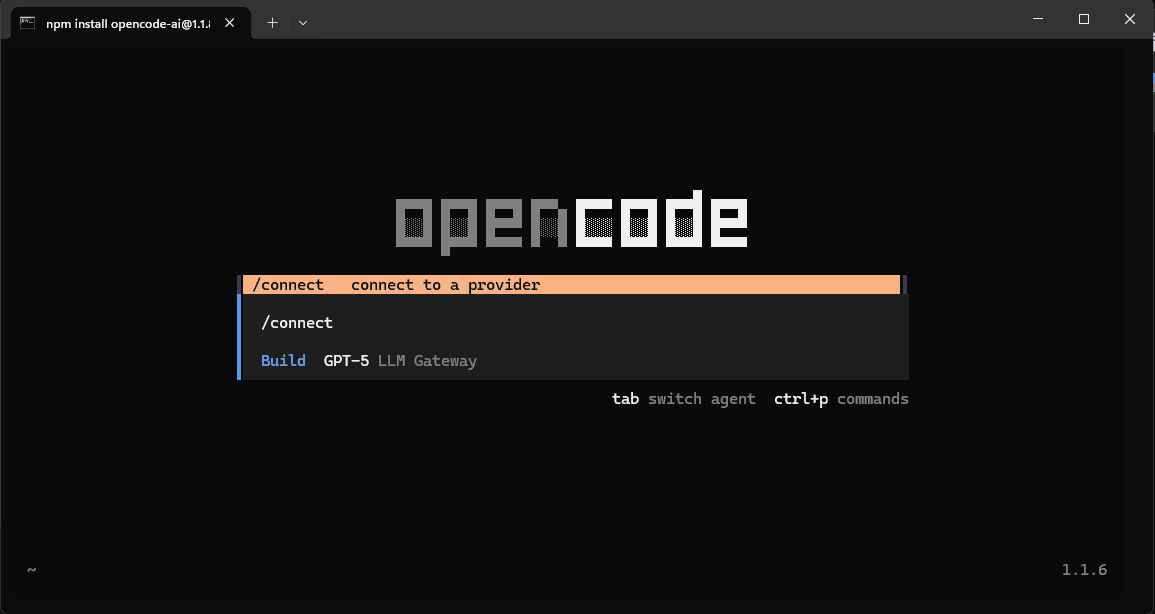
Once OpenCode launches, run the /providers or /connect command to open the provider selection screen:
Step 3: Select LLM Gateway
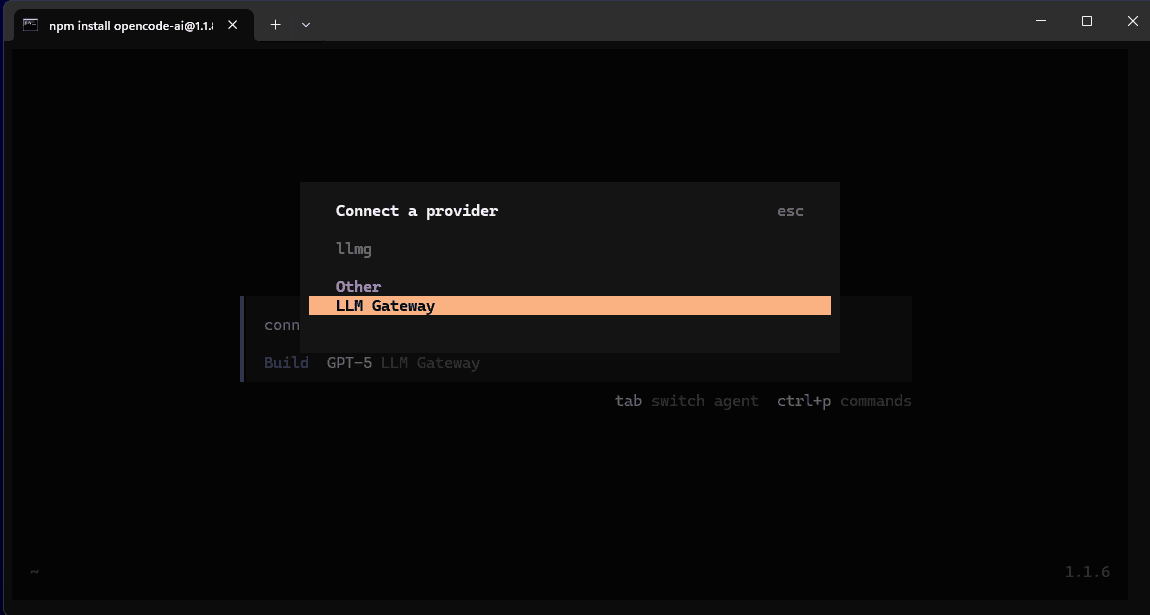
LLM Gateway is listed as a built-in provider. Select "LLM Gateway" from the provider list:
Step 4: Enter Your API Key
OpenCode will prompt you for your API key. Enter your LLM Gateway API key and press Enter:
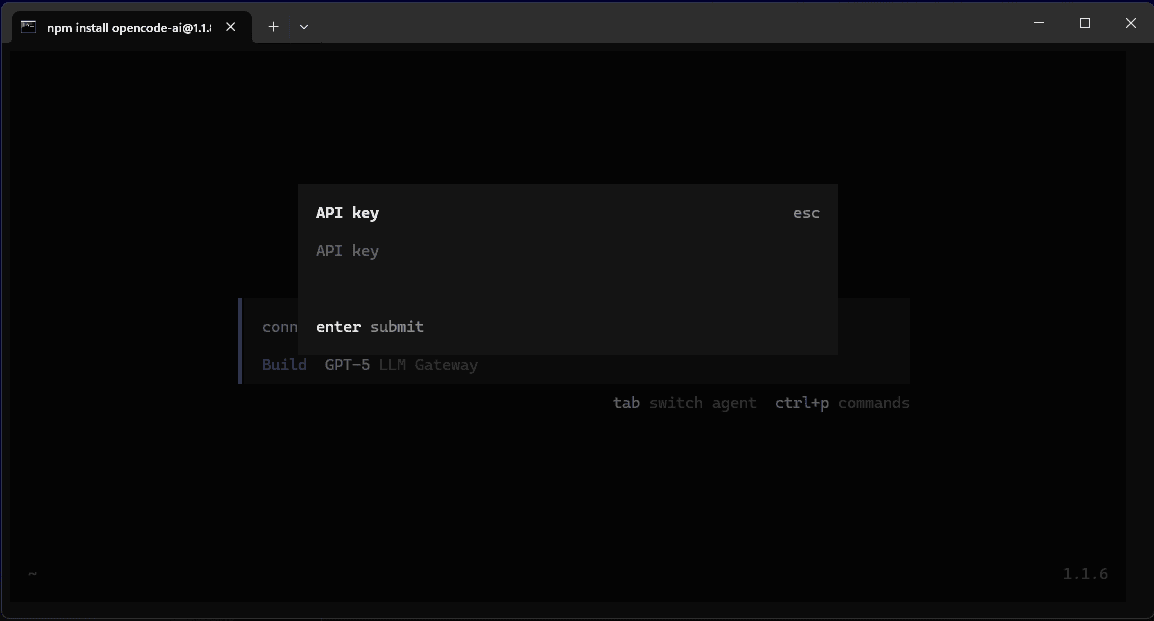
OpenCode will automatically save your credentials securely.
Where to get your API key:
Sign up for LLM Gateway and create an API key from your dashboard.
Step 5: Start Using OpenCode
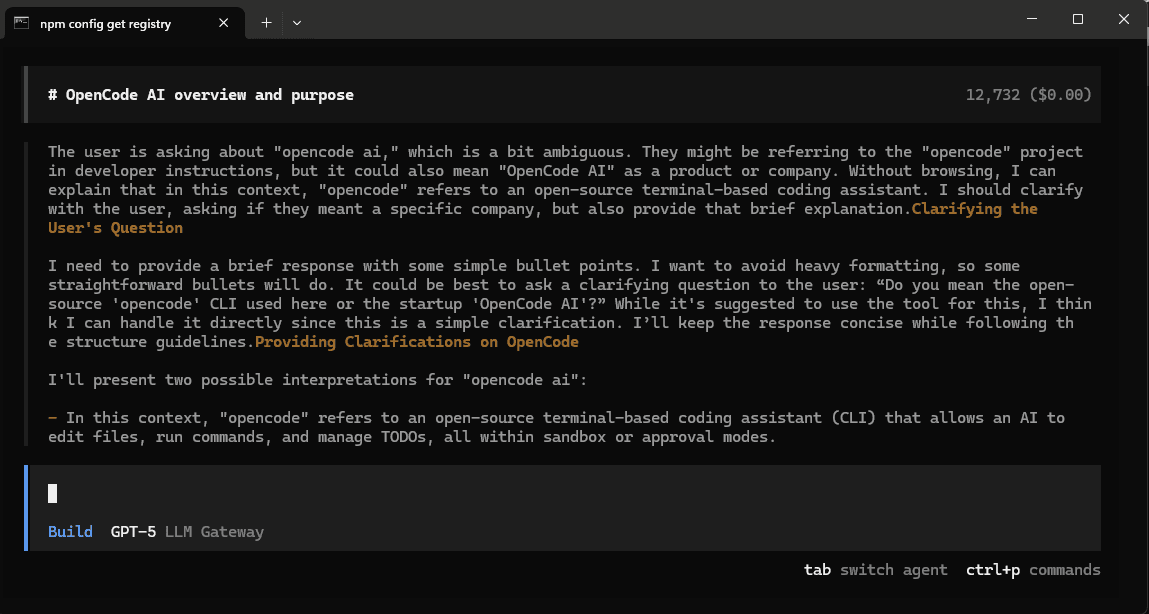
You're all set! OpenCode is now connected to LLM Gateway. You can start asking questions and building with AI:
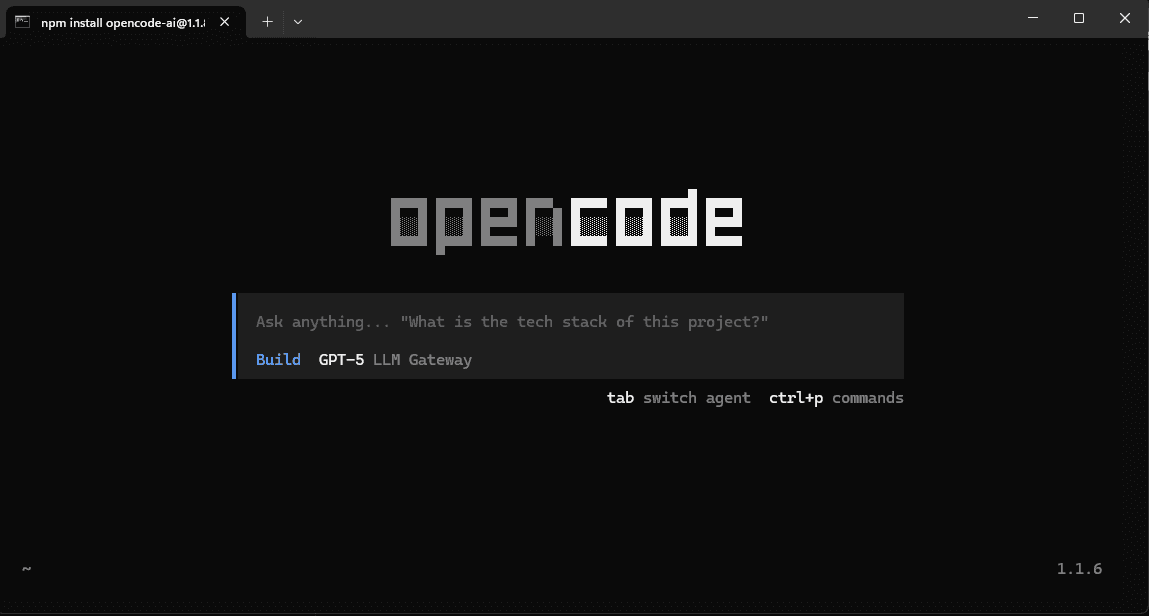
Try asking OpenCode about your project or request help with coding tasks:
Why Use LLM Gateway with OpenCode?
- 210+ models — GPT-5, Claude, Gemini, Llama, and more from 60+ providers
- One API key — Stop juggling credentials for every provider
- Cost tracking — See what each coding session costs in your dashboard
- Response caching — Repeated requests hit cache automatically
- Volume discounts — The more you use, the more you save
Adding Custom Models
The built-in provider gives you access to all standard LLM Gateway models. If you want to add custom model aliases or configure models not yet listed in the built-in provider, you can create a config.json in your OpenCode configuration directory:
macOS/Linux: ~/.config/opencode/config.json
Windows: C:\Users\YourUsername.config\opencode\config.json
1{2 "provider": {3 "llmgateway": {4 "npm": "@ai-sdk/openai-compatible",5 "name": "LLM Gateway",6 "options": {7 "baseURL": "https://api.llmgateway.io/v1"8 },9 "models": {10 "deepseek/deepseek-chat": {11 "name": "DeepSeek Chat"12 },13 "meta/llama-3.3-70b": {14 "name": "Llama 3.3 70B"15 }16 }17 }18 }19}1{2 "provider": {3 "llmgateway": {4 "npm": "@ai-sdk/openai-compatible",5 "name": "LLM Gateway",6 "options": {7 "baseURL": "https://api.llmgateway.io/v1"8 },9 "models": {10 "deepseek/deepseek-chat": {11 "name": "DeepSeek Chat"12 },13 "meta/llama-3.3-70b": {14 "name": "Llama 3.3 70B"15 }16 }17 }18 }19}After updating config.json, restart OpenCode to see the new models.
Switching Models
Select a different model directly in the OpenCode interface, or update the model field in your configuration:
1{2 "model": "llmgateway/gpt-5-mini"3}1{2 "model": "llmgateway/gpt-5-mini"3}Troubleshooting
Connection timeout
Check that you have an active internet connection and that your API key is valid from the dashboard.
Custom models not showing up
After editing config.json, restart OpenCode completely for changes to take effect.
404 Not Found errors with custom config
If you are using a custom config.json, verify your baseURL is set to https://api.llmgateway.io/v1 (note the /v1 at the end).
Configuration Tips
- Global configuration: Use
~/.config/opencode/config.jsonto apply settings across all projects - Project-specific: Place
opencode.jsonin your project root to override global settings for that project - Model selection: You can specify different models for different types of tasks using OpenCode's agent configuration
Get Started
Ready to enhance your OpenCode experience? Sign up for LLM Gateway and get your API key today.